Sitrec is a web application that will run in many popular desktop browser like Chrome, Safari, Edge, or Firefox but also refer to the browser capabilities page for more details. To run it you just enter or click on the URL of the installation. In this documentation I'll assume you are using the standard Metabunk installation at:
https://www.metabunk.org/sitrec/
Sitrec's menus are similar to Mac/Windows menus in that there's a menu bar, and you can click on a menu to open or close it.
You can also drag the menu off the menu bar by clicking on the title (The name of the menu, e.g., "File"), and then dragging down. This will leave that menu open at the position you choose on screen.
To re-dock a menu in the menu bar, either drag it to the top of the screen, or double-click on the title.
Some menus have folders - essentially a sub menu - that you can expand. For example, the Object menu has one folder per object, and each object folder has its own Material folder.
Most values in Sitrec are edited via sliders. You can modify these in various ways:
Most sliders will stop at the left or right minimum or maximum values, but some, such as the hours/minutes, etc., will wrap around and increment/decrement the slider above them. This makes it very convenient to adjust the time by dragging the seconds slider.
Some sliders will expand in scale if you drag over the right side, or contract in scale if you drag over the left side.
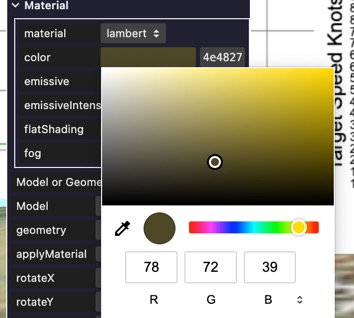
Color pickers let you edit the hex value of the color directly, or you can change the hue, saturation and intensity with the slider and the 2D color selector. You can also switch between RGB, HSL, and HEX inputs. Clicking on the eyedropper tool allows you to sample a color from anywhere on screen.
In Sitrec the screen is divided into windows called "Views". Typically, this will consist of:
You can modify a view in various ways:
All these modification to the views will be saved when you "Export Custom/Mod"
Sitrec is simulating a period of time. This time has a start time and a duration. There's three concepts of time that you need to understand in Sitrec:
A video has a total number of frames, and a specific number for frames per second (fps). A frame number can also be expressed as a time since the start of the video. The slider at the bottom of the screen represents the the frame. You can modify this in various ways:
Start Time is the time at which the video starts. i.e. it's the time at frame 0 (the first frame) of the video. Using the correct time is crucial to recreate a video. Often the start time comes from the video data, but you also might need to edit it manually to find a match.
Now Time is the time at the current frame in the video. Essentially it's the start time of the video plus the frame time.
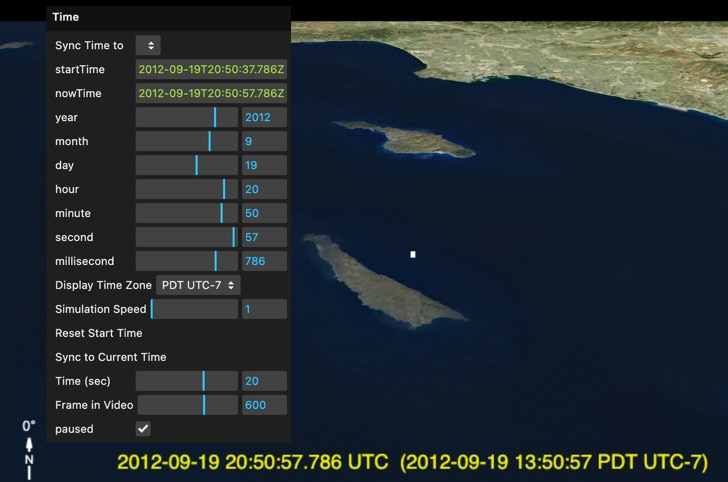
The Time menu shows both the start time and the now time at the top (yellow text). When the Frame Time is set to zero they will both be the same.
The sliders for Year, Month, Day, etc. show the Now Time. This is because when you want to sync the simulation and the video, you will adjust the frame time until there's something distinctive on screen (such as two objects lining up), and then you will adjust the Start Time of the video so that the even happens at the right time in the simulation. This is conceptually simpler if you are editing the Now Time, because that's the point in time that's being displayed (the Start Time is automatically adjusted)
The look view displays the Now Time in UTC format and in the user-selected time zone.
For time-lapse videos, you can adjust the simulation speed.
The Main View is a 3D view on the world, very similar in concept to other 3D viewers like Google Earth. To move the camera around, you use the mouse
If you get lost, you can select "Reset Camera" from the View menu. This will put the camera back to the start position. In the custom sitch tool, it will put the camera back to the position calculated when you last imported a track. You can also get this by pressing "." on the numeric keypad.
You can also set a default using "Snapshot camera".
Under the Terrain menu you can change "Map Type". This defaults to MapBox, but you can also choose a street map view. The Settings EOX, Wireframe, and RGB Test are not particularly useful, but EOX can be used if MapBox is not available - of if you just want a different satellite view time.
There are more terrain editing options in the Custom Sitch Tool