
Sitrec allows the user to create and interact with a variety of situations, called "sitches"
Sitches are defined using a Javascript style structure stored in a file that starts with "Sit" and ends with .js. Each Sitch is inside a folder that can (optionally) contain asset files (like KLM or MISB tracks, CSV data files, or 3D models).
Sitrec is primarily aimed with recreating an event that happens over the course of a few seconds or minutes. The main way it does this is with time series data.
Time series data is data that is recorded at specified intervals of time. The most obvious example is a video, where individual frames of the video are data, and they are recorded at regular interval, like 30 frames per second.
TSD is often recorded at regular intervals, but can be at irregular intervals. The intervals can be small or large.
When we play a sitch, we are essentially creating an interactive video. Sitrec will try to match the original video frame rate. So if there is TSD that has a different interval from the video, then we will need to interpolate intermediate data for the missing time intervals.
Since matching source video is so fundamental to Sitrec, and since we often want to advance the simulation by individual frames matching the video, it's convenient that the unit of time used is one frame.
This means that the unit of time can vary. One frame is often 1/30th of a second, but could be other fractions of a second, like 1/60, 1/29.97, 1/24, 1/25 and others. The length of a frame is defined by the frames per second set in the sitch file. If none is specified, then fps will default to 30.
The time part of the sitch is defined by two other variable, the frames and startTime.
frames is the number of frames in the sitch, which will typically be the number of frames in a video, but also might represent a simple time interval.
The duration of the sitch in frames is given by duration = frames/fps, hence frames = duration * fps
startTime is the date and time at the start of the sitch, in UTC time. It's the time at the start of the first frame. Frames in the sitch are zero based. Meaning the at frame 0, the time will be equal to startTime, and at frame f the time will be startTime + (f / fps)
Example
    fps: 29.97,
    frames: 19480, // (10*60+50)*29.97,
    startTime: "2023-08-05T07:39:13.000Z",
Here the sitch has a video running at 29.97 fps. Note we currently only support constant framerate videos. If a video is recorded with a variable framerate, then it will need converting to constant framerate.
The frames value is set to 19480. The part of the line after // is a "comment", meaning it is helpful info for you the reader, but it is ignored by the code. Here I'm noting that the value 19480 comes from multiplying a duration in seconds by the fps. The (10*60+50) is the number of seconds in 10 minutes and 50 seconds.
The startTime value always has the format YYYY-MM-DDTHH:MM:SS:mmmZ (where mmm is milliseconds)
The above example is part of a sitch file. Notice each line has two fundamental parts, a key followed by a colon(:), and a value followed by a comma (,). This is a necessary part of each line, and omitting the colon or comma will result in errors.
The simplest sitch file would look like:
export const SitEmpty = {
    name: "empty",
}
The line export const SitEmpty = { is not used, but makes it backwards compatible with the legacy built-in sitches (which required recompiling the entire project)
A more functional sitch, with comments explaining what each line does.
export const SitSWR = {
    name: "swr",                    // the name of the sitch, which we can use with "include_"
    menuName: "Skinwalker Ranch",   // Name displayed in the menu
    isTextable: true,               // true if we can export and edit this sitch as a custom sitch

    // Terrain Lat/Lon is the center of the map
    // zoom is the zoom level of the map (1-15 for Mapbox)
    // nTiles is the size of the square region to load (in tiles, so here 4x4)
    terrain: {lat: 40.2572028, lon: -109.893759, zoom: 14, nTiles: 4},

    // a single camera, with the position and heading define by two LLA points
    mainCamera: {
        startCameraPositionLLA:[40.254018,-109.880925,1685.104643],
        startCameraTargetLLA:[40.257957,-109.891099,1439.697690],
    },

    // a full screen view. The size and position are fractions of the window size
    // background is the color of the sky.
    mainView: {left:0.0, top:0, width:1,height:1, background: [0.53, 0.81, 0.92],},
}
Here we see more complex values, which are themselves key:value objects - i.e. a list of named parameters with values.
Notice that the value for the mainCamera: key is over four lines. This is normal Javascript, but it's important to recognize that startCameraPositionLLA: is a parameter of mainCamera and not of the sitch.
The create your own sitch, the simplest way it to start with an existing sitch. You can do this in two ways:
Either way, you will need to create a local folder (i.e. a folder on your computer) and put the sitch file in it. This folder will also contain any other local assets you might want to use, like a .KML or .CSV file
For example, say we want the bare-bones SWR sitch, but we want to change the location. We see we have location data in the terrain: and mainCamera: definitions. Initially the best approach is to remove any camera locations and just edit the terrain location. So the steps are:
export const SitCustomTest = {
name: "customtest",                    // the name of the sitch, which we can use with "include_"
menuName: "Custom Test",   // Name displayed in the menu
isTextable: true,               // true if we can export and edit this sitch as a custom sitch

    terrain: {lat: 37.2339, lon: -115.80446, zoom: 14, nTiles: 4},
    mainCamera: {},
    mainView: {left:0.0, top:0, width:1,height:1, background: [0.53, 0.81, 0.92],},
}
Then in Sitrec, under File Manager click Open Local Sitch Folder and navigate to the folder and click "Open" (you are opening the folder, so you don't need to select the .js file)
Since Sitrec runs in a browser, it needs your permission to access the folder, so you'll get a dialog like:
Click on "View Files", and Sitrec will detect and load the SitCustomTest.js file and load it. You should see a view of the new location.
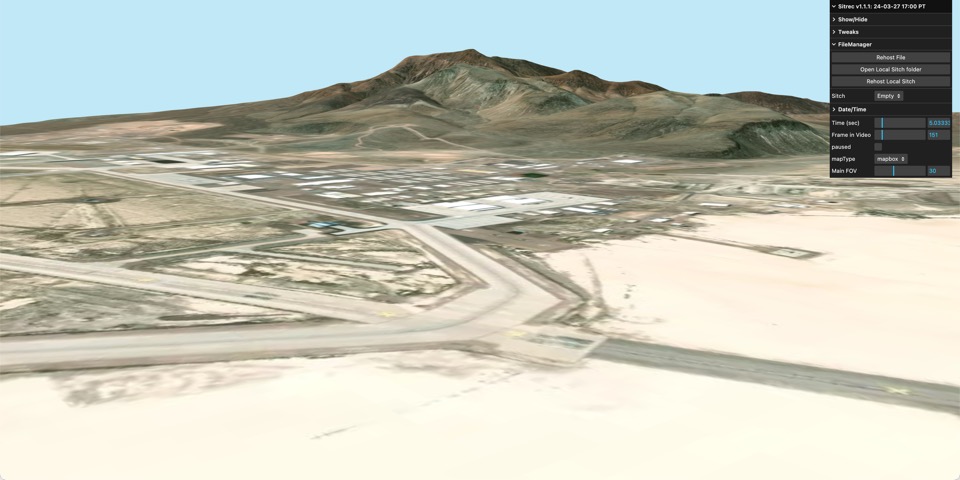
By default if there's no camera position specified, the camera will be high up, looking down. To fix this click on the terrain and zoom in with the mouse wheel, adjust the view to a good position, and then look in the browser's console output to see the lines with the LLA positions. Copy them into the mainCamera definition, like:
    mainCamera: {
    	startCameraPositionLLA:[37.255071,-115.803489,1543.399930],
		startCameraTargetLLA:[37.248309,-115.810684,1380.600230],
	},
Then save. Saving should automatically reload the sitch. This auto-reloading allows you to make quick changes and see the results nearly instantly. So you should see something like:
Instead of copying the entire file, you might want to just make a few changes to a complex sitch. The simplest way of doing that is to use "include_" followed by the name of the sitch. The name here is the value defined in the sitch, e.g. "swr", and not the filename (so NOT "SitSWR.js").
The include_ directive will override anything that comes before it, and then any lines after will override that. So here we use the SWR sitch, but change the mainView to be half the width of the screen, and change the background (sky) color to grey.
export const SitCustomTest = {
    include_swr: true,
    mainView: {left:0.0, top:0, width:0.5,height:1, background: [0.2, 0.2, 0.2]},
}
Giving:
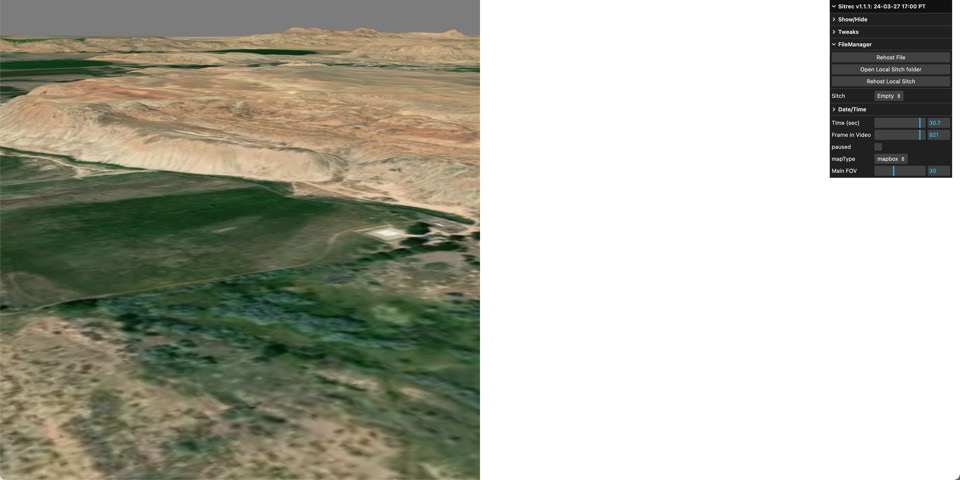 (Notice the grey sky)
The include_ method is a nice easy way of taking a sitch that resembles what you want, and only modify the relevant parts. It makes it clear what you've changed.
A common UAP scenario is video of an object filmed out of a plane window, where the object is suspected to be another plane. To accurately recreate this situation you need:
For this example we will take an existing sitch, N14AQ, and convert it into a stich based on a video from Kansas
As before, we make a folder, and add a new file, Sitkansas2.js. We also add the new video file to the folder. We also need to check how long it is (in frames) and check the fps (30). We now have a sitch file that will show the video
export const SitKansas = {
	include_n14aq: true,
    videoFile: "124984_Kansas.mp4",
    frames: 569,
}
However, it's still showing the location and tracks from the old sitch. So we need to get the two ADS-B tracks we are interested in and add them to the folder:
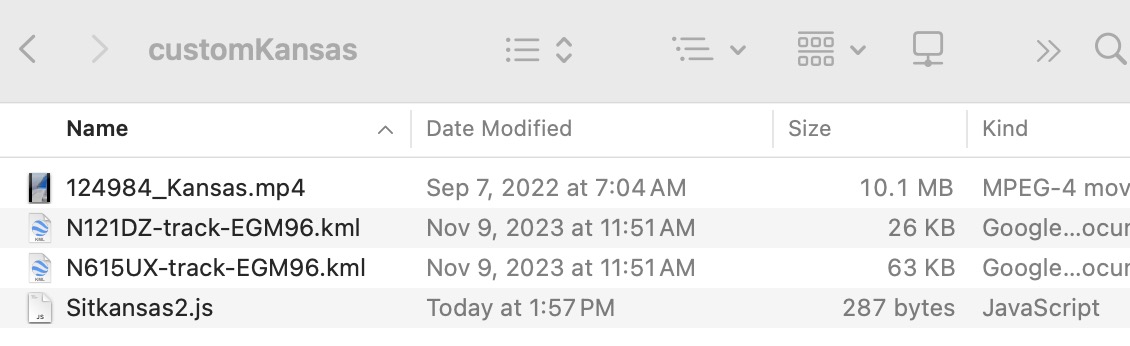
Then we modify the local sitch:
export const SitKansas = {
	include_n14aq: true,
    videoFile: "124984_Kansas.mp4",
    frames: 569,
    files: {
        cameraFile:'N615UX-track-EGM96.kml',
        TargetTrack: 'N121DZ-track-EGM96.kml'
    },
    startTime: "2022-09-01T20:07:32.3Z",
}
When we save and run that it does not work. You'll see an error in the console: "ASSERT: Missing Managed object TargetObjectFile," and you'll note that the original sitch had a line in files of TargetObjectFile: './models/737 MAX 8 BA.glb', along with a later line that uses this "targetObject: {file: "TargetObjectFile"},". This might happen when you inherit a sitch. You need to manually add the missing file reference, or remove where it's used. The latter is simplest, and we can just add a line: ** targetObject: null,**
The final steps to get this working is to add the terrain, and to reset the mainCamera to defaults {}, so we have:
export const SitKansas = {
	include_n14aq: true,
    videoFile: "124984_Kansas.mp4",
    frames: 569,
    files: {
        cameraFile:'N615UX-track-EGM96.kml',
        TargetTrack: 'N121DZ-track-EGM96.kml'
    },
    startTime: "2022-09-01T20:07:32.3Z",
    targetObject: null,
    terrain: {lat: 38.890803, lon: -101.874630, zoom: 9, nTiles: 8},
    mainCamera: {},
}
So we now have a fully local custom sitch. There are some remaining cosmetic steps. First, as above, we adjust the camera and add the camera position to mainCamera.
Secondly, notice the black bands around the video:
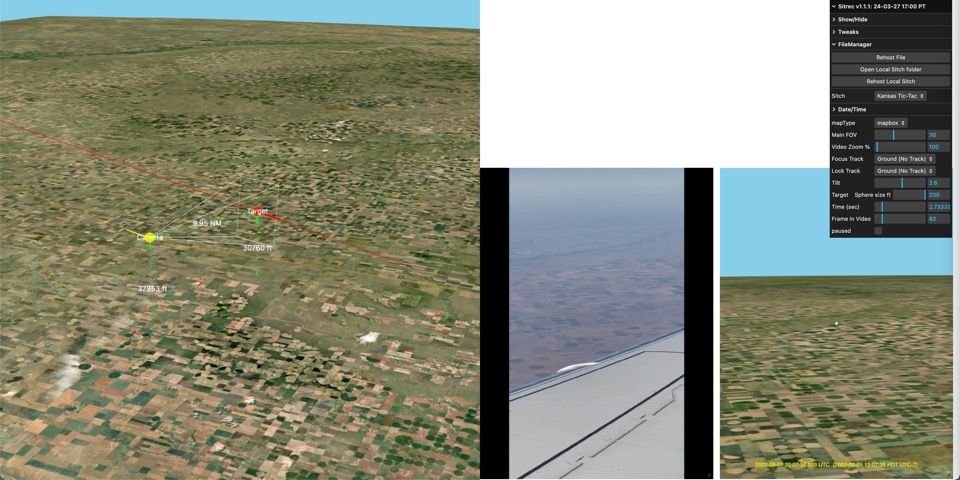 This is because the aspect ratio of the video is different to N14AQ. We can fix this with:
    videoView: { left: 0.5, top: 0.1, width: 0.25, height: -1.77777777,},
    lookView: { left: 0.75, top: 0.1, width: 0.25, height: -1.77777777,},
A view's position is define by left and top, and the size by width and height. Left and top are the offsets from the left and top of the window, as a fraction of the window size. So in the example above we have two views occupying the right half of the screen, one at 0.5 and the other at 0.75. Both are 0.1 from the top of the window. The width and high are also fractions of the window width and height, unless they are negative, in which case they are fractions of the other value. So a height of -1.7777 will be 1.7777 times the width. This allows use to have a fixed aspect ratio that matches the video. If done correctly the vide will play with no back bars. The 1.777777 number here is simply the height of the video divided by the width.
So our final sitch file is:
export const SitKansas = {
	include_n14aq: true,
    videoFile: "124984_Kansas.mp4",
    frames: 569,
    files: {
        cameraFile:'N615UX-track-EGM96.kml',
        TargetTrack: 'N121DZ-track-EGM96.kml'
    },
    startTime: "2022-09-01T20:07:32.3Z",
    targetObject: null,
    terrain: {lat: 38.890803, lon: -101.874630, zoom: 9, nTiles: 8},
    mainCamera: {
        startCameraPositionLLA:[38.185549,-101.651511,44720.548136],
        startCameraTargetLLA:[38.193124,-101.655798,44351.373688],
    },
    videoView: { left: 0.5, top: 0.1, width: 0.25, height: -1.77777777,},
    lookView: { left: 0.75, top: 0.1, width: 0.25, height: -1.77777777,},
}
As it's a local sitch on your computer, it's visible only to you. To share it you need to upload the files. You can do this manually, and replace the local file names with URLs, or it can be done automatically by clicking on "Rehost Local Sitch" under the File Manager. This will rehost all the files. If you look in the console output you should see:
index.f2a65a27ee1778ea26ac.bundle.js:1 replacing "N615UX-track-EGM96.kml" with "https://www.metabunk.org/sitrec-upload/1/N615UX-track-EGM96-25efc1ed94a7d3fb1ef17d58ff34595f.kml"
index.f2a65a27ee1778ea26ac.bundle.js:1 File uploaded: https://www.metabunk.org/sitrec-upload/1/N121DZ-track-EGM96-ea86eea74ff5ab3e1541395441f46e57.kml
index.f2a65a27ee1778ea26ac.bundle.js:1 replacing "N121DZ-track-EGM96.kml" with "https://www.metabunk.org/sitrec-upload/1/N121DZ-track-EGM96-ea86eea74ff5ab3e1541395441f46e57.kml"
index.f2a65a27ee1778ea26ac.bundle.js:1 File uploaded: https://www.metabunk.org/sitrec-upload/1/124984_Kansas-f2cecfa7d0852782a4a05f984ce93819.mp4
index.f2a65a27ee1778ea26ac.bundle.js:1 replacing "124984_Kansas.mp4" with "https://www.metabunk.org/sitrec-upload/1/124984_Kansas-f2cecfa7d0852782a4a05f984ce93819.mp4"
index.f2a65a27ee1778ea26ac.bundle.js:1 All files have been successfully rehosted.
index.f2a65a27ee1778ea26ac.bundle.js:1 File uploaded: https://www.metabunk.org/sitrec-upload/1/Sitkansas2-e0d6bdfa107f13987ab9be49429f1fbd.js
index.f2a65a27ee1778ea26ac.bundle.js:1 Sitch rehosted as https://www.metabunk.org/sitrec-upload/1/Sitkansas2-e0d6bdfa107f13987ab9be49429f1fbd.js
And we see that both tracks and the video have been uploaded. The local filenames have been replaced with URLs, and a modified copy of the sitch has been uploaded. Sitrec will also display a custom sitch link:
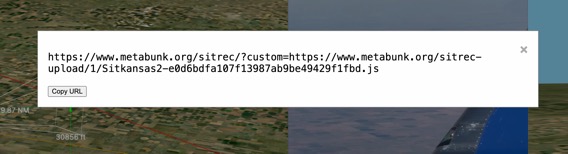
Copy it, and this will give you a sharable link:
If you edit the sitch again, and re-share it you'll get a new URL. The old one will continue to work. For example here the same sitch with a a very narrow field of view
This is all still very much a work in progress, and is subject to improvement. I welcome bug reports (and fixes!) and feature suggestions